
Local scene inspection
glTF Viewer Online — Open Local Files with Textures
Use this glTF viewer to open one .gltf scene together with its .bin buffers and image textures. Rotate the model, compare surface views, and check mesh statistics without uploading your selected files or creating an account.
- Free browser preview
- Local BIN and texture matching
- 50 MB combined selection
Choose a Scene and Its Resources
Drop one .gltf file with its .bin and texture files, or choose them together
glTF 2.0 JSON with local BIN and PNG, JPEG, WebP or AVIF textures · 50 MB combined
Choose all companion files together, or choose the export folder to preserve paths. This glTF viewer previews supported glTF 2.0 scenes; it does not play animation clips, fetch remote resources, unpack ZIP archives, or decode Draco, Meshopt, or KTX2 compression.
How to Use the glTF Viewer
Keep the original export files together. The glTF viewer checks referenced buffers and images before building the preview, so a missing companion file can be identified before you inspect the model.
Select one scene and its companion files
Choose the .gltf JSON file, its BIN buffers, and its image textures in one selection. For nested directories, use Choose Export Folder. The glTF viewer accepts a combined selection up to 50 MB; a folder containing several separate scenes must be narrowed to one export.
Check the preview from several angles
Drag to orbit, scroll or pinch to zoom, and pan to examine details. The glTF viewer offers original surface appearance, matte white, and wireframe views. Auto Rotate moves the camera around the model; it does not play an animation stored in the scene.
Review bounds and selected resources
Read the vertex count, triangle count, combined selected bytes, and axis-aligned bounds. Expand the selected-file list to check what you provided. If the glTF viewer reports a missing resource, select the scene again with that file instead of renaming unrelated files to hide the error.
Try a Complete Local Scene
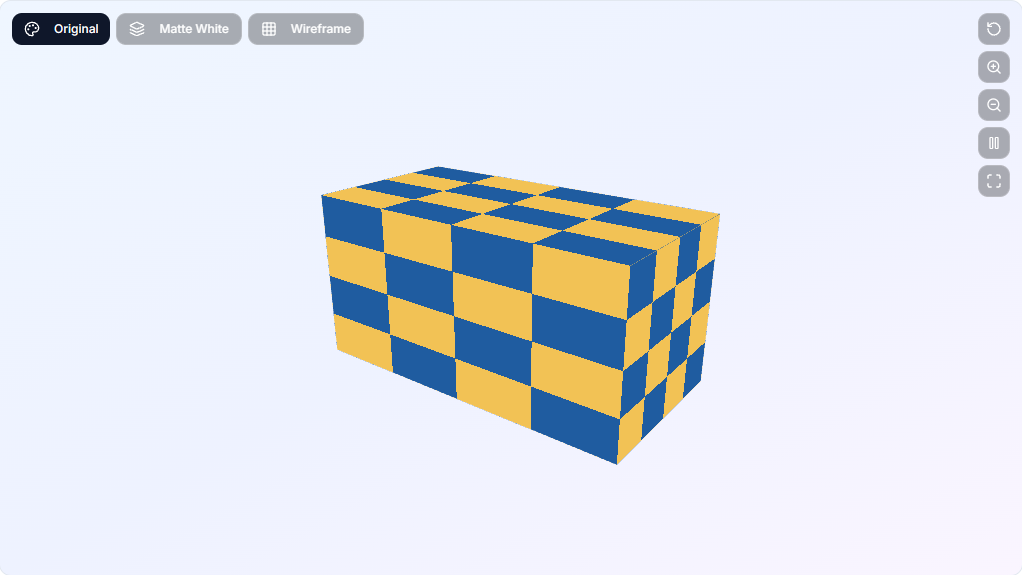
The original checker box sample contains a JSON scene, a separate geometry buffer, and a small checker texture. Try it in the glTF viewer without supplying your own model. The box has 12 triangles and bounds of 2 × 1 × 1 scene units. It is a deliberately simple loading example, not an AI-generated result or a printing benchmark.
Understand the Scene, Buffer, and Image Files
What the JSON file describes
A .gltf file describes a scene using JSON: objects, transforms, meshes, materials, and references to binary data or images. Opening the JSON alone may not provide any vertex positions. The glTF viewer needs the referenced data as well. Some exports embed resources as data URIs and therefore work as a single JSON file.
When a GLB file is the better fit
GLB is a binary container for glTF data and commonly packages the scene, geometry, and images together. This page focuses on JSON exports and their companion resources. Use the separate GLB tool for a .glb file. The glTF viewer does not convert the selected scene or rewrite its original files.
Inspect Geometry Before Your Next Export
Compare surfaces and wireframes
Original mode helps you inspect supported base-color appearance. Matte white makes the silhouette easier to judge, while wireframe reveals the triangle structure. The glTF viewer is useful for catching an unexpected rotation, an absent part, or an overly dense mesh. It is a visual inspection tool, not a material editor, photoreal render, or complete format validator.
Read counts and coordinate bounds carefully
Triangle and vertex counts describe the loaded mesh geometry; shared geometry can be counted for each mesh that uses it. Bounds include scene transforms and are displayed in scene units. Standard glTF uses meters for linear distances, but a faulty export can still carry an unintended scale. A glTF viewer preview cannot establish manufacturing tolerances or certify a watertight print.
Fix Missing Buffers and Texture Paths
Match filenames without guessing
If a scene refers to textures/base-color.png, include that image with its original name. A normal multi-file picker can match a unique basename when folder paths are unavailable. Choose the folder when two subdirectories contain files with the same name. The glTF viewer preserves folder paths and reports ambiguous matches rather than quietly using the wrong texture.
Use a compatible local export
Extract ZIP archives first and keep resources within the selected export folder. Remote URLs and paths outside that folder are blocked. Re-export models that require Draco, Meshopt, or KTX2 decoding without those compression options. If an image file is present but cannot be decoded, check its actual encoding. The glTF viewer does not download extra decoders to repair an incompatible asset.
glTF Viewer Questions and Answers
- Is this glTF viewer free, and do I need an account?
- The local preview is free and requires no account or credits. Choose your files and inspect the supported scene on this page. Separate AI generation tools have their own access conditions; opening an existing model here does not start generation.
- Why does my .gltf file need a .bin file?
- Many exports keep vertex positions, indices, and other numeric data in an external binary buffer. The JSON points to that buffer by a relative URI. Select both files together. A glTF viewer cannot reconstruct missing buffer data from a filename or from the JSON structure alone.
- Are my selected model files uploaded?
- Your selected scene, buffer, and image bytes are read locally in this browser and are not submitted to a model-processing server. The website still loads its normal public assets and configured analytics. Trying the public sample downloads its bundled example files; it does not upload your files.
- Can I use the glTF viewer on a phone?
- Use a modern browser with WebGL and a file picker that can select the required resources. Touch gestures control the preview. Folder selection depends on browser support, and large scenes can exhaust a phone's memory even below the 50 MB combined limit. Try the small sample first.
- Does this tool play animation or support every extension?
- No. This version displays a static scene and offers camera rotation. It does not provide clip playback, skinning controls, or external compression decoders. Unsupported required extensions are reported. For a compatibility failure, export a simpler uncompressed glTF 2.0 scene and include its ordinary image textures.
- Can I open a ZIP or GLB directly?
- Extract a ZIP before selecting its contents. This page accepts one .gltf scene and its companion resources. For binary .glb input, follow the GLB Viewer link below. Keeping those workflows separate makes it clearer which files each tool expects.
- Does a successful preview mean the model is ready to print?
- No. A visible scene can contain open surfaces, intersecting parts, thin walls, or an unintended scale. After any conversion, verify dimensions and inspect the exported model in a slicer. This glTF viewer does not repair geometry, generate supports, or certify printability.
Choose the Next Step for Your Model
GLB Viewer
Open a binary .glb model with its embedded resources in the dedicated preview.
3D Viewer
Inspect another supported mesh format in the general-purpose viewer.
glTF to GLB Converter
Continue to the separate converter. Check its input requirements before selecting a multi-file export.
glTF to STL Converter
Export supported geometry for a printing workflow, then inspect the result in a slicer.
Inspect Your Scene Before You Share It
Return to the glTF viewer with your original scene, buffers, and textures ready.
Choose glTF Files